Install TakeCareOS
TakeCareOS works like a native app on your phone. Follow the steps below to add it to your home screen — no app store needed.
Use Safari. If you opened this link from an email or message, open it in Safari first.
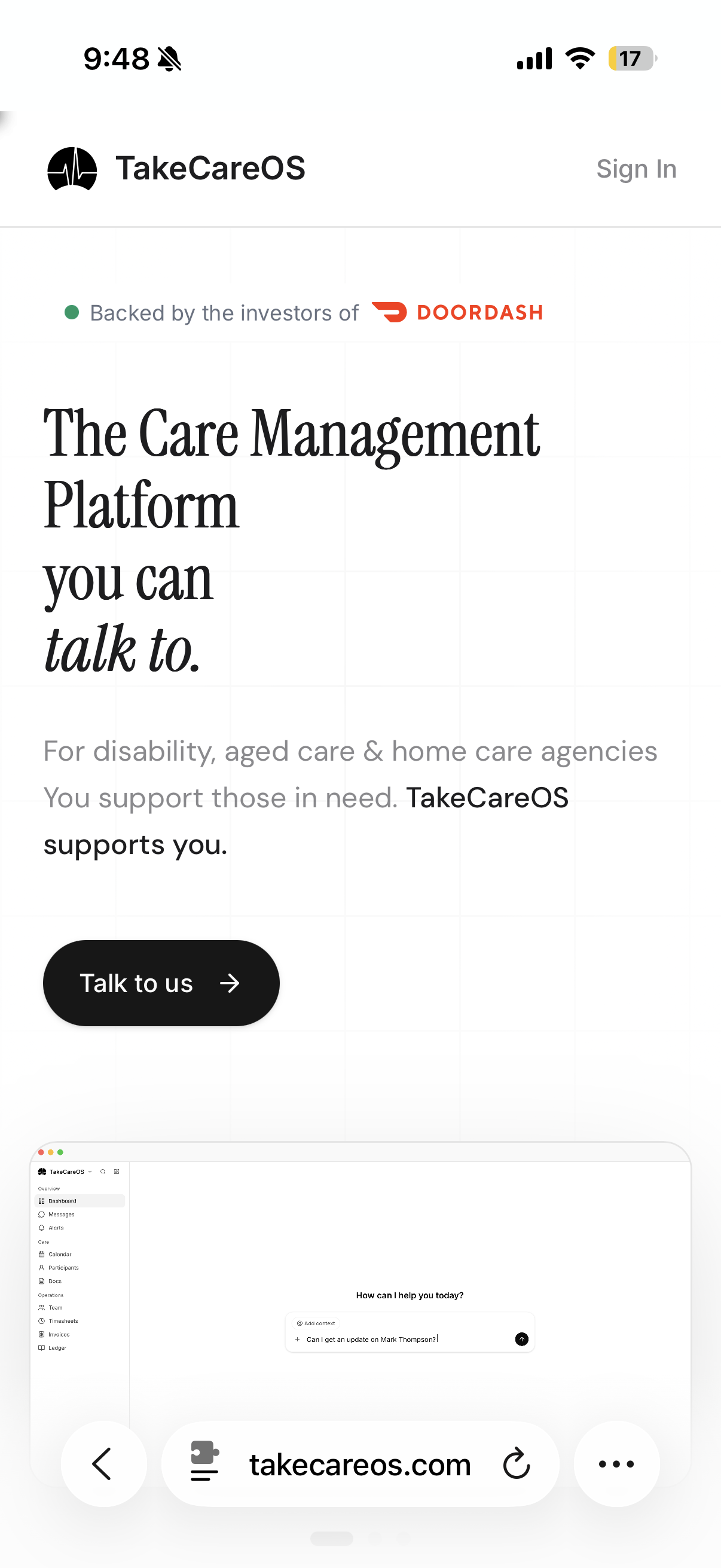
Tap the three dots
Tap the ··· button in the bottom-right corner of the Safari toolbar.
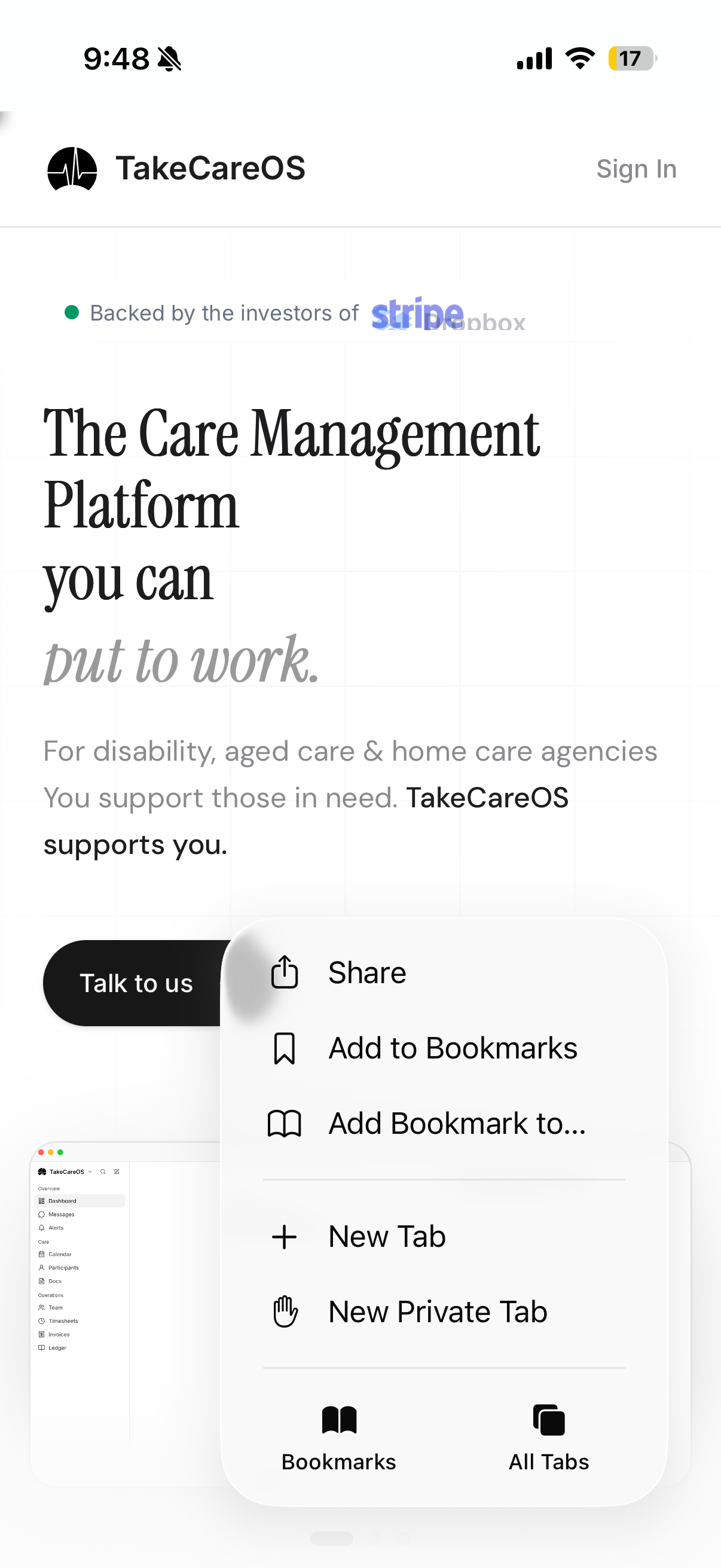
Tap "Share"
In the popup menu that appears, tap the "Share" option near the top.
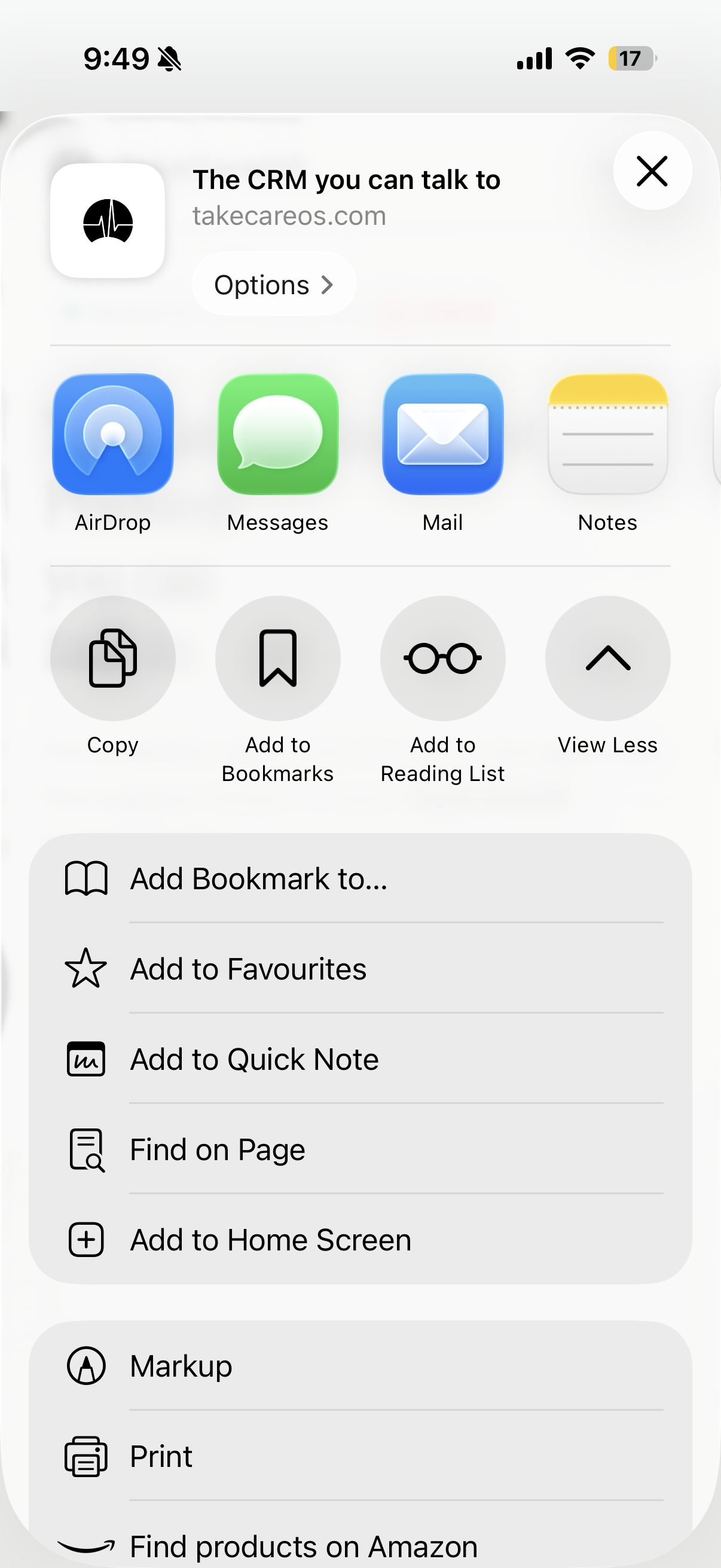
Tap "Add to Home Screen"
Scroll down in the share sheet until you find "Add to Home Screen" and tap it.
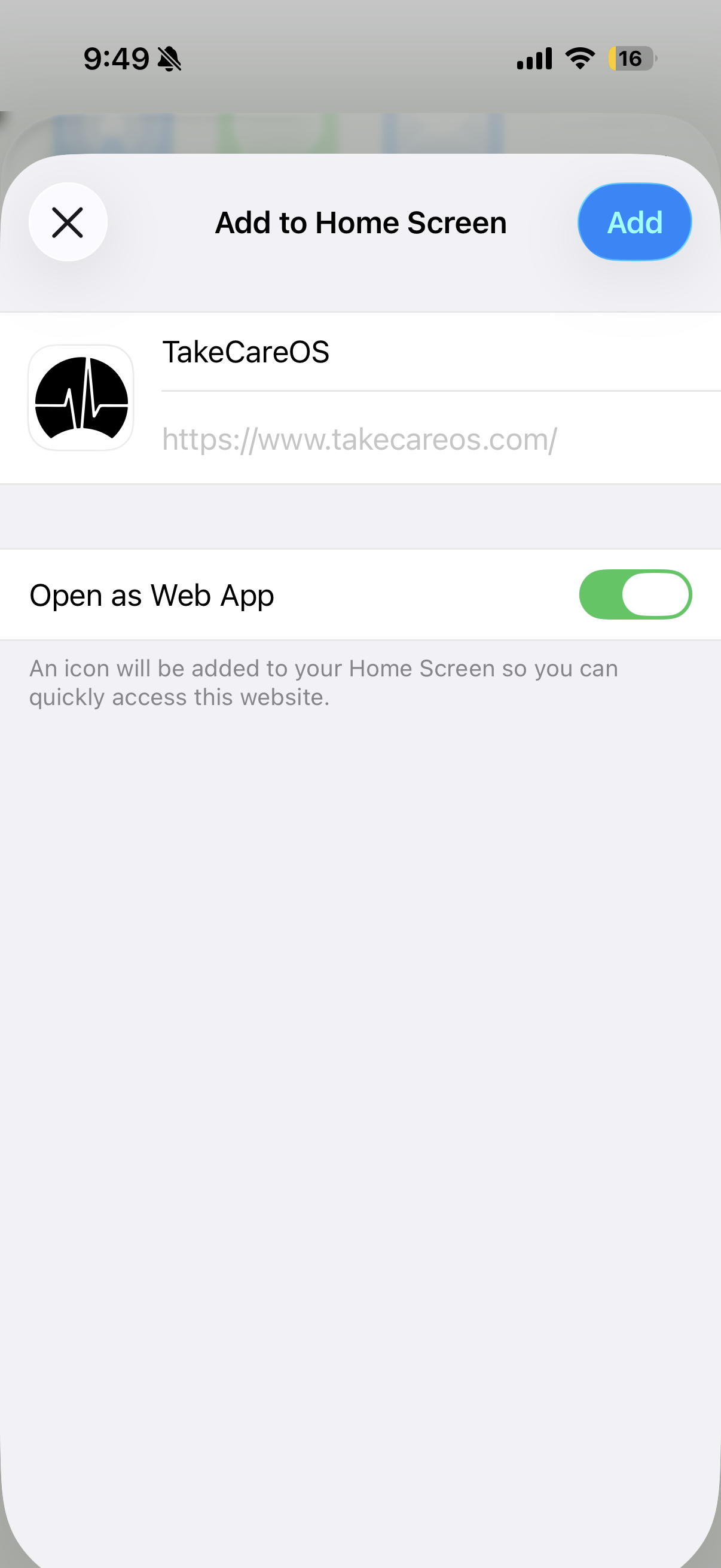
Tap "Add"
Tap the blue "Add" button in the top-right corner to confirm.
App installed — now let's get you signed in
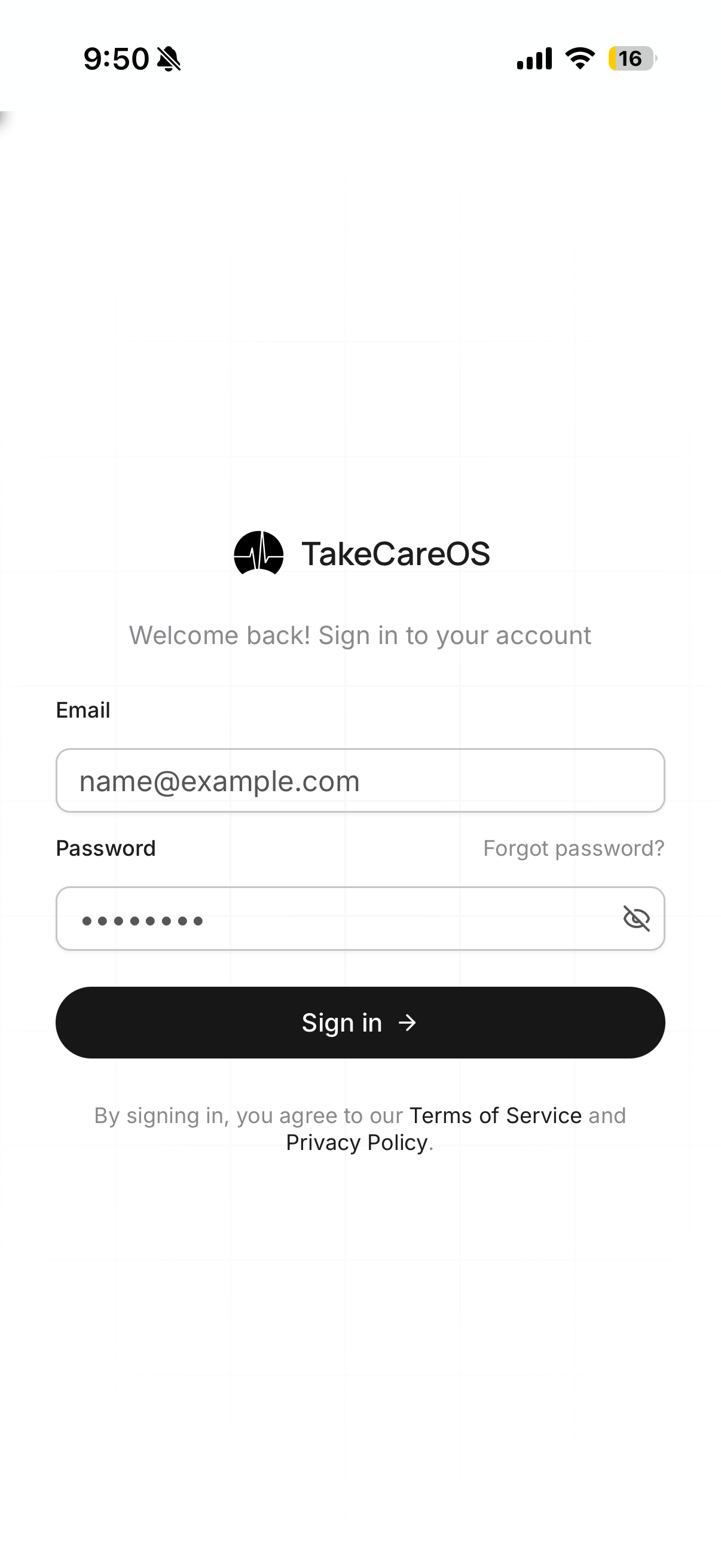
Sign in
Open TakeCareOS from your home screen and sign in with your account credentials.
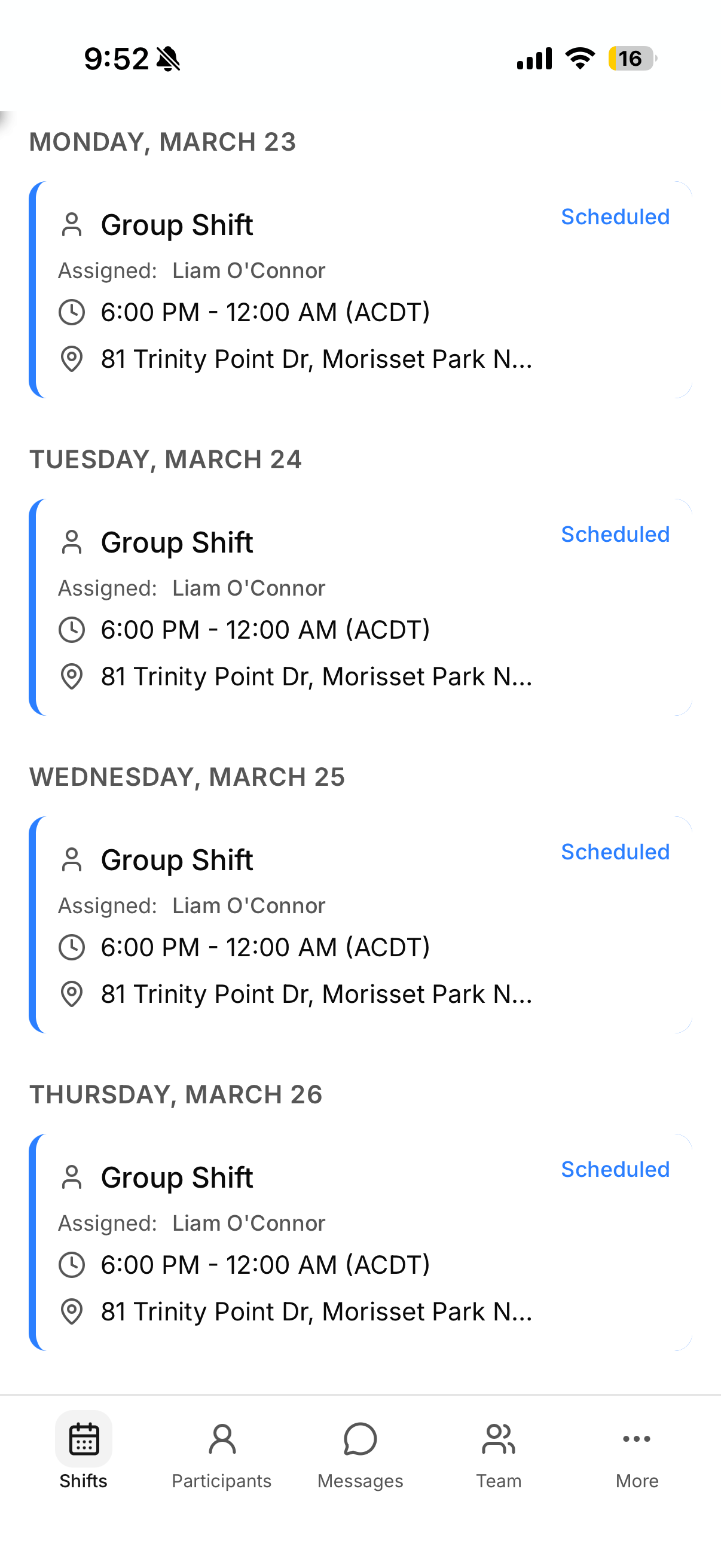
Tap "More"
Tap the "More" button in the bottom-right corner of the screen.
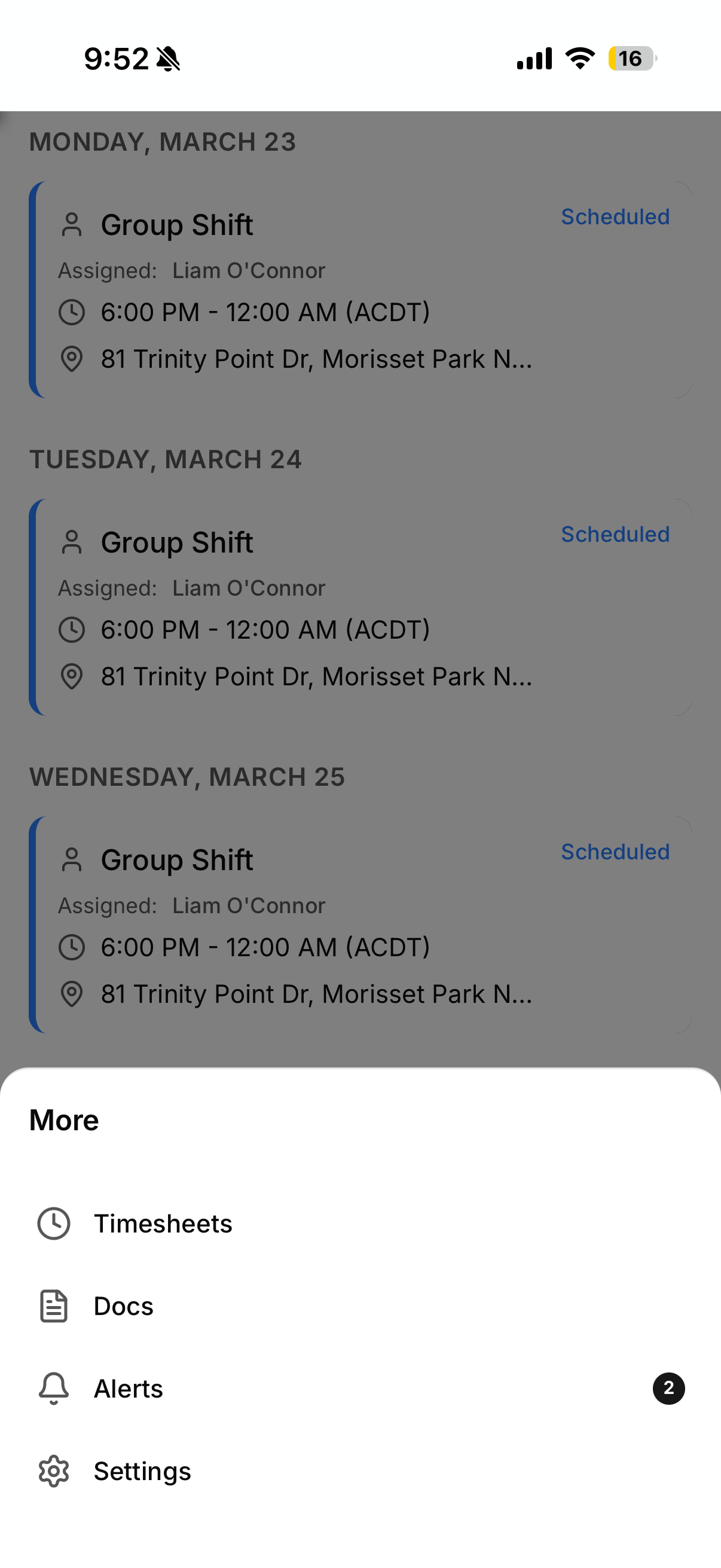
Tap "Settings"
In the More menu, tap "Settings" to open your app preferences.
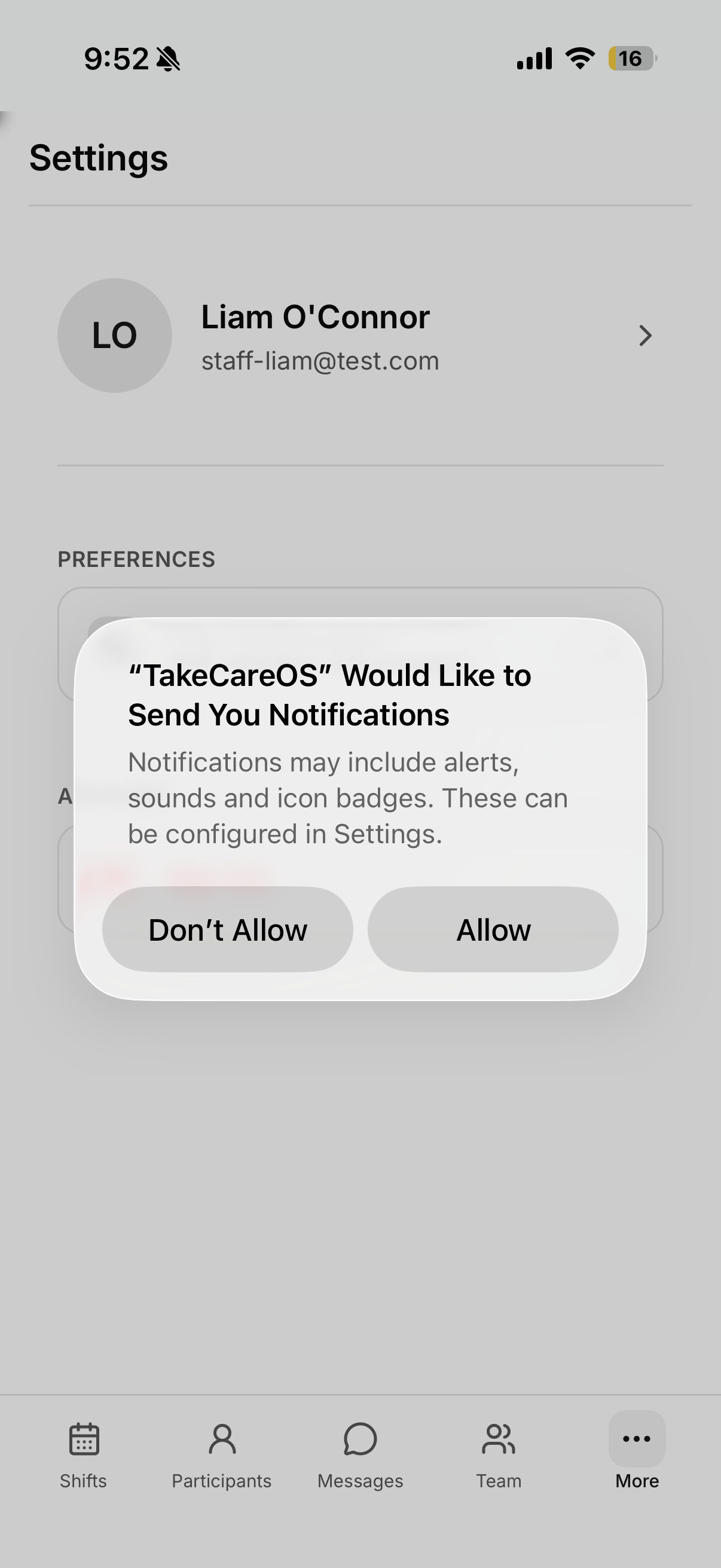
Enable push notifications
Tap the toggle and tap "Allow" when prompted.
You're all set!
TakeCareOS is on your home screen and notifications are enabled.
 TakeCareOS
You're all set!
TakeCareOS is installed and ready to go. You'll receive notifications for shifts, messages, and alerts.
Notifications not working?
If you accidentally denied the prompt, you can enable notifications from your phone's settings:
iOS 18 and later
- 1Open the Settings app on your iPhone
- 2Tap Apps
- 3Find and tap TakeCareOS
- 4Tap Notifications
- 5Toggle "Allow Notifications" on
iOS 17 and earlier
- 1Open the Settings app on your iPhone
- 2Scroll down and tap TakeCareOS
- 3Tap Notifications
- 4Toggle "Allow Notifications" on
TakeCareOS is a Progressive Web App (PWA). Once installed, it works offline, sends push notifications, and feels just like a native app.